HTML5 offers several useful new elements, to add further meaning to the markup of a page. These new elements include time, mark and here is another one, meter. It is an inline element so it can be used inside most elements, including a header or a paragraph.
What does it say in the spec?
The meter element represents a scalar measurement within a known range, or a fractional value; for example disk usage, the relevance of a query result, or the fraction of a voting population to have selected a particular candidate.
When I first read about the meter tag, I immediately thought it would be useful for profile pages, such as height and weight, and maybe age, marked up in a nice definition list. However, the third line of the spec says
The meter element also does not represent a scalar value of arbitrary range — for example, it would be wrong to use this to report a weight, or height, unless there is a known maximum value
So there goes my idea. The emphasis of the spec definition is “a scalar measurement within a known range”
. We’ll go through some sample usage now but I still think it would add useful meaning to a sportsman’s profile page for example.
Attributes
There are six attributes allowed with the meter tag: value, min, max, high, low and optimum. As we’ll mention later, the emphasis is on the author to use these correctly.
- Value
- This is what will be parsed out – the actual value. If you do not use the value attribute, then the first number inside the tag is the value:
<meter> 2 out of 10</meter>. If a real number is not used, then the value is zero. - Min
- The minimum allowed value. If there is no min attribute, then it assumes the minimum is zero. If it is not specified then the value is 0.
- Max
- The maximum allowed value. If the maximum value is less than the minimum value, then the minimum value is used as the max. If it is not specified then the value is 1. However, if it is possible to specify the value of this in the content – such as a percentage sign, as the maximum then will be 100%
- Low
- This is considered to be the low part of the value range. It must be less than or equal to the value of the high attribute. Also, if the low value is less than the min value, then the low value is the same as the min value.
- High
- This is considered to be the high part of the value range. If the high value is less than the low boundary, then the high value is the same as the low value. Also, if the high value is greater than the max value, then the high value is the same as the max value.
- Optimum
- This is considered to be the optimum value and needs to be somewhere between min and max. It can be greater than the high attribute
Let’s have a look at some examples
A voting or rating tool
<p>Your score is: <meter>2 out of 10</meter></p>We can give this further meaning by adding min and max attributes
<p>Your score is: <meter min="0" max="10">2 out of 10</meter></p><p>Your score is: <meter value="91" min="0" max="100" low="40" high="90" optimum="100">A+</meter></p>Without the attributes
You do not always need to use an attribute with the meter tag. You could use
<meter>80%</meter>Because the max value is going to be 100% (unless you always give that extra 10 :P ). You can also use fractions as the range is within itself, such as
<meter>3/4</meter>Some real world examples
Christmas Calendar/Countdown
<p>Christmas is in <meter value ="30" min="1" max="366" title="days">30 days!</p>Notice that the title attribute can be used to specify the unit (so we can use “centimeters” or “lbs”, and so on).
Just Giving
We could also use meter on the fundraising website Justgiving.
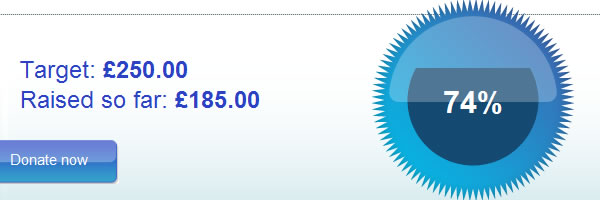
This page, for example, would use
<dl>
  <dt>Target</dt>
  <dd><meter min="145" value="145" title="pounds">£145</meter></dd>
  <dt>Amount raised so far</dt>
  <dd><meter min="0" max="1000" low="50" high="125" value="145" optimum="145" title="pounds">£145</meter></dd>
</dl>
Incorrect use
Empty tag
If you used
<meter min="0" max="100" value="75"></meter>
Nothing will display on your page – it is noted in the spec
The recommended way of giving the value is to include it as contents of the element
So you need to put something in the content of the tag and it doesn’t necessarily have to be a number. The spec has a good example of this
<p><meter value="0.5">Moderate activity,</meter> Usenet, 618 subscribers</p>
<p><meter value="0.25">Low activity,</meter> Usenet, 22 subscribers</p>
<p><meter value="0.25">Low activity,</meter> Usenet, 66 subscribers</p>
Which could be used to produce on-screen information as shown

As I noted earlier, it is incorrect to use as a weight or height, unless there is a maximum value. The spec gives this example:
<p>The grapefruit pie had a radius of <meter>12cm</meter> and a height of <meter>2cm</meter>.</p> <!-- BAD! -->
Instead, one would either not include the meter element, or use the meter element with a defined range to give the dimensions in context compared to other pies:
<p>The grapefruit pie had a radius of 12cm and a height of 2cm.</p>
<dl>
<dt>Radius: <dd> <meter min=0 max=20 value=12>12cm</meter>
<dt>Height: <dd> <meter min=0 max=10 value=2>2cm</meter>
</dl>
Whilst the above is now a correct usage of the meter tag, how do I know the max height or radius of a grapefruit? I would prefer to use a meter tag there but instead I’d probably just use a definition list to display the information.
Browser support
The meter tag works in at least the following browsers Safari 4, Firefox 3.5, Chrome 2, Opera 9.64 naturally. The following javascript is needed for IE 6, 7 and 8 (see Remy’s article about Getting HTML5 to play nicely in older browsers.
 <!--[if IE]>
  <script  src="http://html5shiv.googlecode.com/svn/trunk/html5.js"></script>
  <![endif]-->
As it is an inline element, you don’t need to do anything special with the CSS.
Conclusion
If I were to use
<meter value="1000" min="0" max="500">100%</meter>Obviously there are inconsistencies. Now, I am just being silly there but what the user will see on the screen is “100%” when the value is actually 1000. The meter tag puts the emphasis on the author to make sure that they are using this nice, new semantic tag,well, semantically and correctly.
The attributes can appear to be quite confusing but the spec is very detailed for this element. I do think they may have missed a trick by not allowing it to be used to give a stand-alone height or weight but overall I see the meter tag being used a lot in apps and on webpages, perhaps if used with javascript, it could generate live graphs and charts (though we can also use canvas for this).
Finally, I also wonder if meter allows for negative values? For example if the temperature was going to be between -10 and 5 degrees could I use meter to mark that up? I’d love to know your thoughts.
41 Responses on the article “Measure up with the meter tag”
[…] This post was mentioned on Twitter by Mike Robinson, elmook and html5doctor. html5doctor said: Measure up with the <meter> tag, from Dr @leads – http://bit.ly/3Ww3vV […]
Looks very much like the “rating” property of the hReview microformat:
http://microformats.org/wiki/hreview
… but we still need a proper “measurement” microformat/ element:
http://microformats.org/wiki/measure
without all that silly “compared to other pies” nonsense.
Your max attributes in the code blocks right after this:
“We can give this further meaning by adding min and max attributes”
need equal signs.
Thanks for the continuing great articles.
You can’t use it for temperatures, because even if there is a clearly defined minimum temperature (0 K), there is no maximum.
All in all, I don’t get its point. It’s like a static progress bar.
In your “Just Giving” example, you’re measuring progress toward a definite goal. That should be a element rather than a . ( exists mostly just so people won’t abuse to get similar-looking things.)
Otherwise, great article!
Bleh, and of course I forget to escape my angle brackets. I’m too used to plain-text media. “That should be a <progress element rather than a <meter>. (<meter> exists mostly…”
@Adam – good spot.
@Alejandro – I see your points. Which is why I think we should be able to use it as a “arbitrary range”.
Using a temperature is probably a bad example anyway, as there isn’t necessarily a minimum either.
@Tab – you raise a good point. From what I’ve read, I got the impression the progress element was for a live representation, such as a download, and it uses javascript to reflect the current value. However, it does have a ‘max’ attribute which does make it look like the meter tag. I think in the case of the Just Giving example, because we can also make use of the other attributes, the meter tag is more appropriate.
You can use negative numbers.
The idea of <meter> is to use it for gauges — the fundraising example is a perfect example of what it could be used for. The main reason it’s in the spec is to give people a reason to not abuse <progress> for gauges (<progress> is the element for progress bars).
HTH.
Seems like a good candidate for JavaScript slider controls.
At first I thought ‘ugh – more tag soup’ – but I can see where this could be useful after reading your post.
I guess that we can do:
<meter min="0" max="5" value="3"><img src="3stars.gif" alt="3 stars" /></meter>
And with your temperature question – if you are working with a limited range of temperatures, I don’t see a problem.
(FYI – there is a minimum temperature – 0 K or -273 °C is ‘absolute minimum’ – just no known upper limit )
> FYI – there is a minimum temperature – 0 K or -273 °C is ‘absolute minimum’ – just no known upper limit )
Way too broad. You have to think practically, not theoretically. Your readers don’t care about the lowest or highest possible temperatures in the universe in every case. That is the exception, not the rule.
A thermoMETER is a great use of the meter tag. There are many different kinds of thermometers in the world, and they all have a top and bottom value, according to what they’re designed to measure. A thermometer for the human body does not have to show the boiling point of water, but a food thermometer does. If you are showing the high and low temperature for the day in select cities, the lowest and highest recorded temperatures in those cities over the past 100 years are a guide to what the top and bottom numbers on your thermometer should be. If your meter goes from -50 to 50 then you could show today’s temperature in every city in the United States.
Similarly, a car may have a speedometer that shows 0 to 200 kph but 200 kph is not the theoretical limit of the speed of the car. You can put nitrous in the tank and get 250 out of that baby. But the car maker chose sensible top and bottom values that work most of the time with 0 and 200.
Thermometers and speedometers are indeed good examples for <meter>.
<input type=range> will provide a slider control, by the way.
I’m confused. You say the meter tag works in a variety of browsers but when I take a look at the spec (http://www.whatwg.org/specs/web-apps/current-work/#the-meter-element) it shows no support for any and it’s simply a working draft yet. I also tried it using Chrome dev build and I’m getting nothing but plain text.
What’s the scoop?
little typo:
title”days”
should be:
title=”days”
Thank you, I’m learning a lot.
Just to note some slight complexity with the JustGiving example (which I helped to design) – although it looks like a <meter> it is in fact open ended. The donations don’t stop when the target is reached; the % can exceed 100, which is marked by the logo glowing around the edges. Thus perhaps <meter> wouldn’t be the best element here.
Minor point which doesn’t detract from a great post, but I suppose it does reinforce the need to look carefully at the variables involve to assess whether they are open or not.
@David, Thanks for the spot should now be corrected.
@Cennydd, yeah that’s a good point about being able to go over 100%, you got any thoughts on which element would be more appropriate?
Maybe Hixie would like to comment on what should happen in this instance, or what element he’d use, though he said above it’s the perfect example?
You can do:
<meter min=0 high=100 max=101 value=...>…and use “101” as the “beyond 100” value, but it’s a bit of a hack.
@bartek meter is an inline element and will appear as plain text unless you use some css to jazz it up if you want.
@Cennydd Thanks for that. It never occurred to me.
The Christmas calendar usage is a tricky one. At first glance, it seemed an incorrect usage to me, because the range of days that 30 is a value of seems to be arbitrarily 366. The defining aspect of a correct usage of meter is that is denotes a value that is a fraction or portion of a range.
When I considered it further, I realized that the farthest you can be from any Christmas is 366 days, and so with some thought, there is a known range. I think the article might be better served if this is explicitly noted, because meter will not work with just any countdown, such as a countdown to a specific, non-reoccurring date. “December 25, 2009 is in 30 days!” is not a correct usage of meter: until the date of the creation of the universe is known, there is no maximum of the number of days you can be prior to December 25, 2009 that can be known. Furthermore, if the sentence happened to be further semantically marked up, with “Christmas” being wrapped in either an hcal date format or a
<time>as the specific Christmas being referred to, the usage would become incorrect.In fact, since a specific date can be inferred from the number of days indicated, it could be argued that “Christmas” in your example does indeed refer to a specific date, and then your example would be incorrect again. If you want to keep the example, you might want to disambiguate it, by saying something like “A Christmas is in 30 days!”…
My head hurts. The point is that
<meter>should really just be reserved for indicating clear fractions and percentages with a very clear and definite maximum and minimum.Steve Workman wrote an interesting blog post about the difficulties of styling the meter tag http://www.steveworkman.com/web-design/html-5-web-design/2009/my-problem-with-html-5-styling-meter/ which led me to experiment http://people.opera.com/brucel/dev/html5-meter-style.html
What about using meter for pagination?
[…] meter represents a measurement, such as disk usage. Nice – this will help (support: http://html5doctor.com/measure-up-with-the-meter-tag/) […]
[…] meter definisce le unità di misura […]
hope it’s not too late to comment:
what are the implications with CSS on this one?
Your my HTML Idol !!
[…] Measure up with the meter tag […]
[…] give HTML5 for Web Designers 8.5 out of 10 Stammys. Oh and I just used the HTML5 meter tag on that rating, as mentioned in the book. The book is a well-designed quick and simple read, if a […]
[…] http://html5doctor.com/measure-up-with-the-meter-tag/ […]
[…] Ist schlicht der aktuelle Wert, laut Spezifikation (Stand Juni 2010) ein Pflichtattribut. Bei <html>5Doctor fand ich noch eine erweiterte Erklärung, hier heißt es: Wenn das Attribut nicht gesetzt ist, wird […]
Quick correction:
should be:
Correct? Feel free to delete if corrected or I’m wrong.
Erp, one more:
It’s actually inline-block – which is nice because you can set width/height.
after trying some of your examples out I have noticed that firefox 5 and the latest version of chrome. Am I the only one seeing this?
[…] The meter tag is used to markup measurements, specifically a scalar measurement within a known range. […]
I’m very confused by the JustGiving example… the values in the markup don’t make any sense, nor do they match the figure/screenshot above. Is this a mistake or am I not getting something?
[…] Most of us have seen HTML5’s new form semantics. Most of these are attributes of the input element, thereby ensuring graceful degradation to <input type=text> in older browsers. New elements include datalist, output, progress and meter. […]
[…] nicht auf den Einsatz verzichten möchte, kann zwischen dem öffnenden und schließendem Tag Informationen hinterlegen, die nur bei Nicht-Implementierung des Elements angezeigt […]
So what can you imply? Might you describe or intricate further ?
So I have given this a go, I’ve used it on an album review site, which rates albums out of 10. Seemed pretty geared up for it.
However, in Chrome I get a standard progress bar. My code looks like this:
<meter value="10" min="0" max="11" low="3" high="8"><span class="score">10</span>/10</meter>
In all other browsers I see 10/10 – but in Chrome it gives a full up progress bar.
I’ve inspected the code and found the property -webkit-appearance has been applied in the css and set to “meter”. I have tried playing around with the property but nothing will remove the pesky progress bar graphic… Anyone else come across this, and managed to get around it?
Your article is simply wrong on some of the most important parts of the meter tag.
First, you state:
You do not always need to use an attribute with the meter tag. You could use
<meter>80%</meter>
This is simply not true. Using a tag in this format produces an empty meter — why would we ever need that?
Further down, you’re once again completely wrong by stating:
If you used
<meter min=”0″ max=”100″ value=”75″></meter>
Nothing will display on your page – it is noted in the spec
This is simply not true. In Chrome and Firefox this creates a perfectly valid meter element. What’s more, the spec doesn’t even say that. It says the recommended way, not the only way.
Clean up your post!
[…] Most of us have seen HTML5’s new form semantics. Most of these are attributes of theinput element, thereby ensuring graceful degradation to <input type=text> in older browsers. New elements include datalist, output, progress and meter. […]
Lacking article at best, although it’s to be expected with such a weak tag.
“”””””real world””””” examples? mousing over the christmas one gives me a small green bar with a popup telling me “days”
what days? how many? half an inch worth? (who keeps track of days in a bar-graph anyway?)
3/4 doesn’t even do anything, so why would I have to state the amount twice?
what I’d want to see is using a definable variable, ideally even to use in the title for added clarity to the exact number.
and don’t even get me started on the ‘optimum’ attribute, which seems to be logical but then doesn’t change anything in the graphic if the value is on, above or below this mystical value.
tags like this should cater to needs, not be thought up first and then require “html-doctors” to desperately seek vague and cumbersome uses for them.
Join the discussion.