Did a drink just spill? Stop typing. Disconnect an external keyboard. For a laptop, turn it off, unplug its charger and follow the manufacturer’s spill instructions. Leave it off while you get advice. Trying the space bar a few more times to see whether it still works can wait. Lenovo’s guidance for a spill on an IdeaPad explains what to do about power and when to contact support.
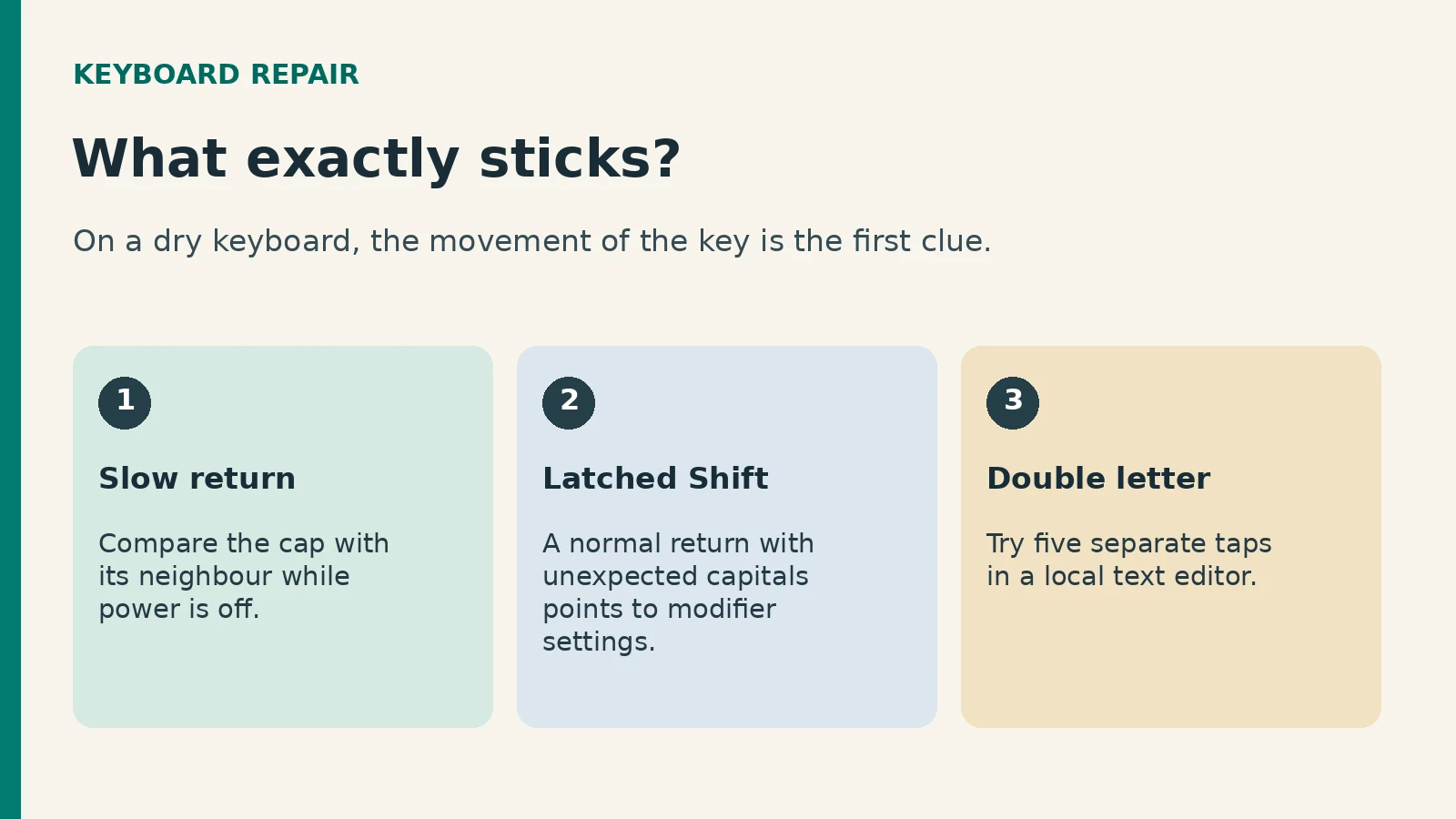
On a dry keyboard, turn off the power and gently press the key with one finger. See how quickly it pops back up. Now try the key to its left. Does the first key stay partially depressed? That points to a physical problem you can investigate with the power off. If it moves freely but Shift keeps capitalising the next letter, check the Sticky Keys option in Windows.
Contents
- Work out what sticks
- Clean a dry keyboard
- Decide whether a cap comes off
- Check Sticky Keys in Windows
- Track down repeats and missed letters
- Test the repair
Work out what sticks
Let’s assume you’re experiencing problems with the space bar. The space bar works fine when you press the center of the bar, but it leaves words joined together when you type rapidly. How far to the right or left of center does your thumb fall? The bar is probably sticking somewhere along that edge. With the keyboard turned off, attempt to press the area of the bar where your thumb falls. If the cap drops down at the correct angle and stays there, you’ll now have a more detailed description of your problem than “i think my keyboard is stuck.”
| Symptom | First check |
|---|---|
| one key catches even with power off | Look for debris, a tilted cap or damage around that key. |
| Shift returns promptly, but the next letter is capitalised | Check Caps Lock, then the Sticky Keys setting. |
| Every letter repeats after a similar pause while held | Look at the keyboard repeat delay. |
| A single quick tap sometimes prints two letters | Compare that key in another editor and on another keyboard. |
| Enter works in a text editor but misses a button on one page | Check which page control has keyboard focus. |
Those three words (eggs, tea, rice) provide sufficient material for testing a malfunctioning E key. Create a new document and type those words. eggs begins with an E, tea includes an E in the middle, and rice ends with an E. Are you getting teea, or is ta appearing? Perhaps instead of an extra E, you are seeing an unexpected capital letter instead? Save that document as evidence if needed; don’t send your password or confidential message to demonstrate a typing issue.
Clean a dry keyboard
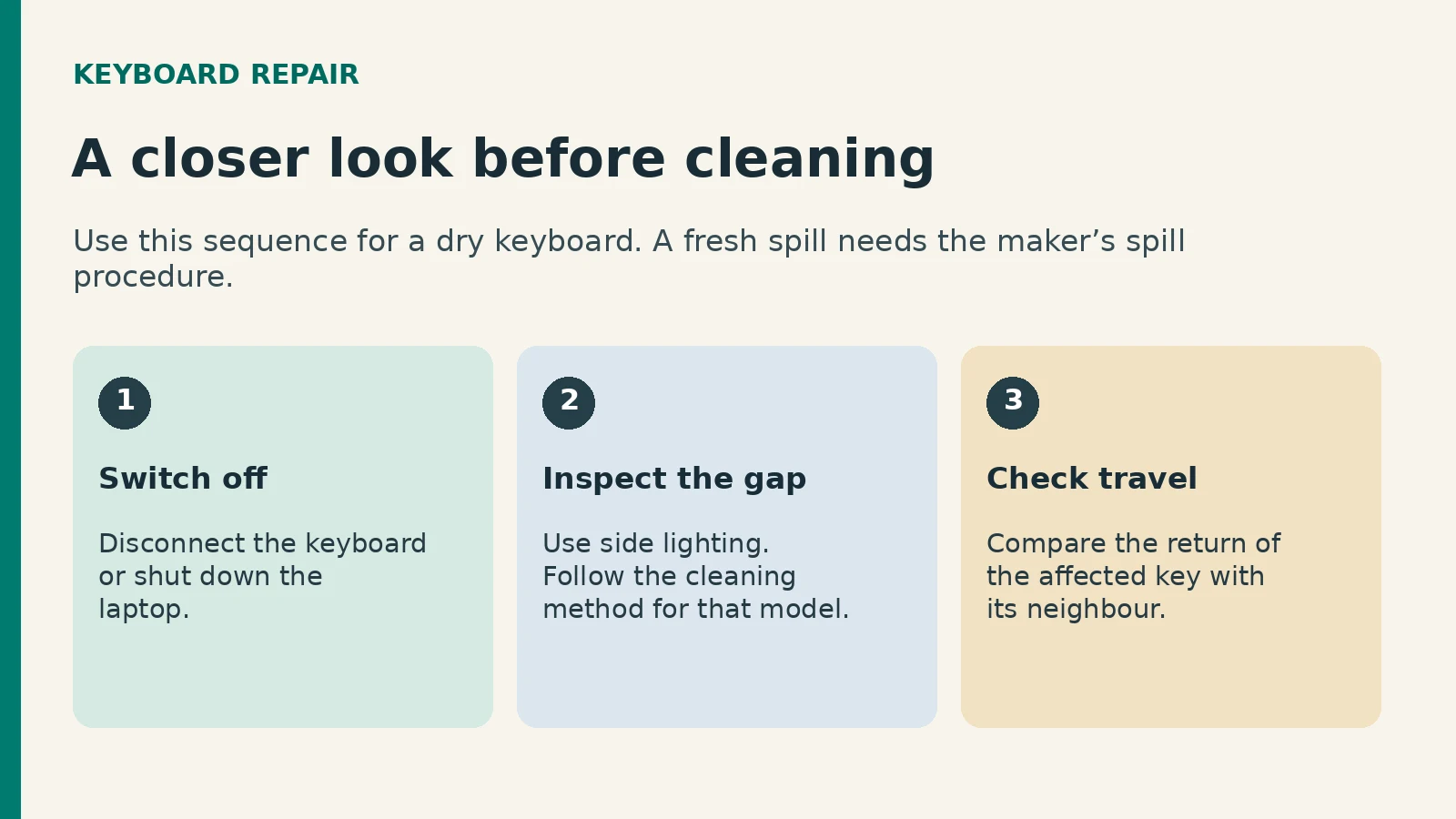
Check the power source. Even though your wireless keyboard may be disconnected from its charger, it could still be powered on. Use the keyboard’s power switch and unplug its cable. Turn off a notebook before attempting to clean its keys. Set down a sheet of white paper if you’d like to see what debris comes out during the cleaning process. Angle a light sideways through the gaps. A piece of cereal lodged against the side of a black key is nearly invisible when viewed directly downward.
Do whatever you can access from above before moving on. Using a soft-bristled brush, sweep loose crumbs toward the edges of your keyboard. Maintain the bristles close to the surface. Pushing them down into a crevice can drive the crumb deeper into the gap. Use a lint-free cloth to wipe the top of your keys. If allowed by your model, follow your manufacturer’s guidelines for applying a moistened cloth with cleaner. Stay away from holes. Never spray cleaner directly onto the keyboard. You have very little control over where that fluid goes.
Your model name is important in this context. Logitech provides a general guide to cleaning their keyboards and would serve as a suitable starting point for cleaning your Logitech board. Search under your model name for specific cleaning recommendations since something that you can apply to large gaming keys on your desktop gaming board can potentially damage one of the connectors used by thinner notebooks.
Before plugging it in again, verify whether there has been improvement compared to the neighbor in terms of how well the cap snaps back up. Has scraping disappeared? Does the cap now snap back up to roughly the same height? Once completely dry, recreate your shopping list as you typically would. If it’s somewhat better but still duplicates Es, document both scenarios. You’ve made progress in regards to one problem and discovered another problem that requires investigation.
Decide whether a cap comes off
A keycap is the piece on top with the letter on it. Many notebook keyboards have small interlocking arms that guide the cap up and down. On a mechanical keyboard the cap may fit directly over a switch stem. Both designs look ordinary from the top. Lifting a corner with a fingernail is an unreliable way to tell them apart.
Look at the service or owner’s manuals for your specific model to determine if the diagram shows pulling off a letter cap or indicates otherwise regarding caps and space bars. A puller included with the package may be designed specifically for smaller keys rather than larger ones. Larger keys frequently have additional supports, and one end may continue to attach while the opposite end is lifted. Don’t remove any caps unless you’re instructed to do so in all directions covered in those manuals.
Keep a screwdriver away from the edge of the cap. A missing diagram is a reason to leave it in place. Let the technician understand which direction(s) it resists returning, and whether it springs back up evenly. Also, be mindful of making a distinction between caps and switches. Having permission to remove a letter cap does not mean you have authorization to remove an electric switch located underneath.
Cleaning caps does not necessarily fix issues related to registering two letters with only one tap.
Check Sticky Keys in Windows
Typically, Ctrl + P means pressing p while holding down Ctrl. However, Windows also lets you press Ctrl, release Ctrl and then press p. This is referred to as sticky keys — useful for users who utilize only one hand when typing on their keyboard. Ask permission before altering it if sharing your computer with others. The University of Colorado Denver has developed an online guide covering adaptive keyboard Settings.
To enable or disable sticky keys in Windows 11:
- Open Settings → Accessibility → Keyboard.
- Check whether Sticky Keys is enabled and whether anyone using the PC needs it.
- If it was enabled accidentally, turn it off. Open its shortcut options as well.
- Pressing Shift five times can activate the feature when the shortcut is enabled. Turn off that shortcut if your games keep triggering it.
In a blank note, turn Caps Lock off. Tap A once. Hold the left Shift key and tap A again. Release Shift completely before the third A. You should see aAa. Start a second line and repeat with right Shift. A difference between those two lines gives you something specific to try with a borrowed keyboard.
Filter Keys is on the same screen. Check it if quick taps go missing across the entire keyboard. It can change which brief or repeated presses Windows accepts.
Document prior states before checking for differences in operation and restore them if they didn’t produce any positive effects.
Track down repeats and missed letters
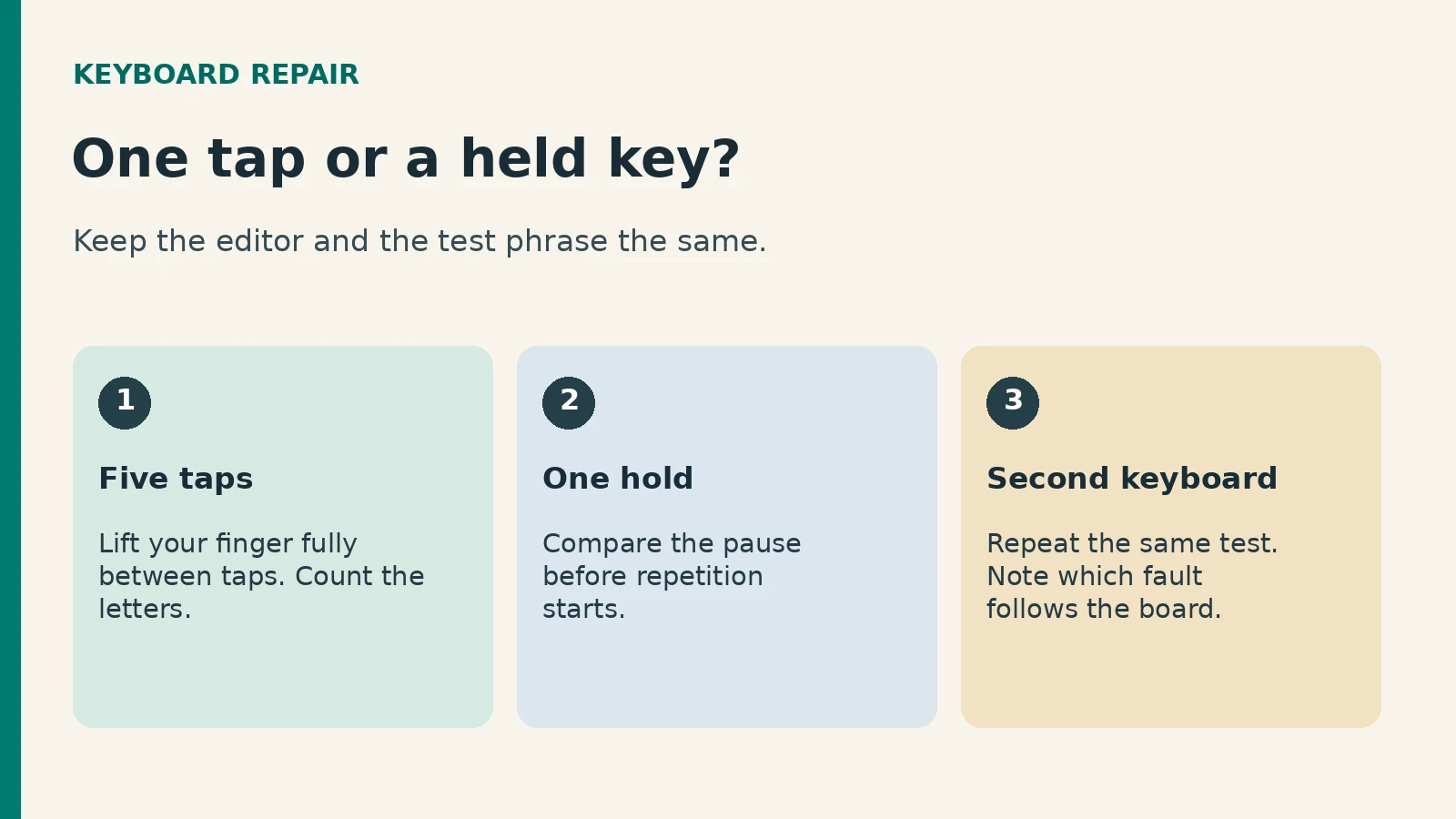
five taps should give you five letters.
When you repeatedly tap E slowly enough that your finger clears each stroke before completing the next one (that is, allowing each tap to complete fully before proceeding), you should receive five separate es.
However, when you hold down on E (keeping pressure on), you expect to receive an E followed shortly thereafter by multiple es until you release pressure.
But what happens if every letter starts duplicating before you have time to remove your finger from the keyboard? Check your repeat delay settings in Keyboard Properties.
Changing repeat delay changes how long a held key waits before it starts repeating. The change applies across the keyboard.
Write down your current settings so you can revert later.
And what if a single light tap occasionally prints two characters? Try E in Notepad.
Repeat with W.
If yours is detachable, try the same keyboard on a second computer. Keep the test phrase and typing speed the same.
Did the extra E follow the keyboard? Tell the technician exactly that.
Now attach a known working keyboard to the original computer. Type the same phrase in the same app.
If both keyboards fail there, examine the app’s shortcuts and any custom key mappings before purchasing parts.
There is one scenario unique to webpages: you press enter on a form and nothing happens.
Try pressing enter in Notepad.
If Enter creates a new line in Notepad, the key registered there.
Return to your form and use Tab to locate the button and see which control has focus indicator turned on. Try entering again.
If you maintain the page, compare its control with a native HTML button.
You can insert that small snippet into the HTML viewer and test it independently of your rest of your page content.
An enter key that works anywhere except on your checkout page is excellent justification for examining your checkout page.
Test the repair
As accurately as possible recreate the failure mode. If it was your right thumb that caused problems for your sticky spacebar, test that section of the spacebar. If your shopping list revealed failurEs, enter that list at typical typing speed. A single tap indicates that at least one key can move.
Two sentences tell you whether it gets back up in time for the next word.
Worked example. Suppose the word “tea” keeps appearing as “teea”. With power off, the E key sits level and returns as quickly as W. In a local note, five separate E taps occasionally give six letters, while W gives five every time. A borrowed USB keyboard types the same line correctly. Give the repairer those three observations and the model number. There is little reason at this stage to change how quickly all held keys repeat.
Will disabling Sticky Keys free a space bar that stays down?
A spacebar that sticks even when powered off needs cleaning or repair work done directly to that spacebar’s mechanism. None of the Windows configuration options affect how well or poorly a spacebar bounces back after being depressed.
If cleaning externally does not allow it to bounce back up, consult with your manufacturer’s model-specific service instructions.
Can I keep typing after a splash if all the keys still work?
Switch off and follow the spill procedures for that model. Liquid can sit beneath functioning keys. Document what spilled and when, even if the tops already feel dry.