Your laptop says the DNS server isn’t responding. The phone beside it opens the bus timetable straight away. Look at the little symbol above the timetable. If it says 5G, you’ve just compared two broadband connections without meaning to.
Turn off mobile data for a moment and load a fresh page on the phone over Wi-Fi. Try that address on the laptop as well. If both fail, the router or broadband service deserves a look. If the phone works, leave the router alone for now. There’s one more possibility worth checking before you touch a setting. Can the laptop open a different site? A failure confined to the timetable has a rather different explanation from a laptop that can’t look up any name at all.
Contents
- Check the address that failed
- Make two lookups without changing settings
- Match the reply to a fix
- Repair one computer or browser
- When every device loses DNS
- Check that the repair held
Check the address that failed
Assume you are able to successfully access the shop at “https://example.com” however, “https://example.com/shop/boots” states “page not found”. Both URLs have the exact same hostnames. So for both, the DNS system will look up example.com. The web server will then handle the additional “/shop/boots” piece. In this case, if the web server responds with a 404 for that path, the web server has already received communication from you. For a site that you manage, verify the link and destination filename before looking into the DNS.
Modify the previous example to better fit your needs. The store loads but selecting pay directs to a new hostname, and your browser will state that it cannot locate the server. At this point, it is safe to investigate the DNS further. Record the hostname from the failed page which includes any prefixes. You may be able to receive a valid response by only loading the shop’s front end. That would be answering a different question than what you need.
Change one variable at a time (device, network, hostname). Test all three variables independently.
| Repeat the test | Useful observation |
|---|---|
| Same laptop and URL, second browser | Only one browser fails. Check its saved address and secure DNS settings. |
| Same Wi-Fi and URL, second device | Only the laptop fails. Start with its connection settings. |
| Same phone and URL, mobile data instead of Wi-Fi | It works away from home. Investigate the home connection. |
| Same network and device, unrelated website | The second site opens. Investigate the original hostname first. |
An old tab may still show last night’s article while the internet is down. Try a fresh address. Switch mobile data back on after the comparison.
Make two lookups without changing settings
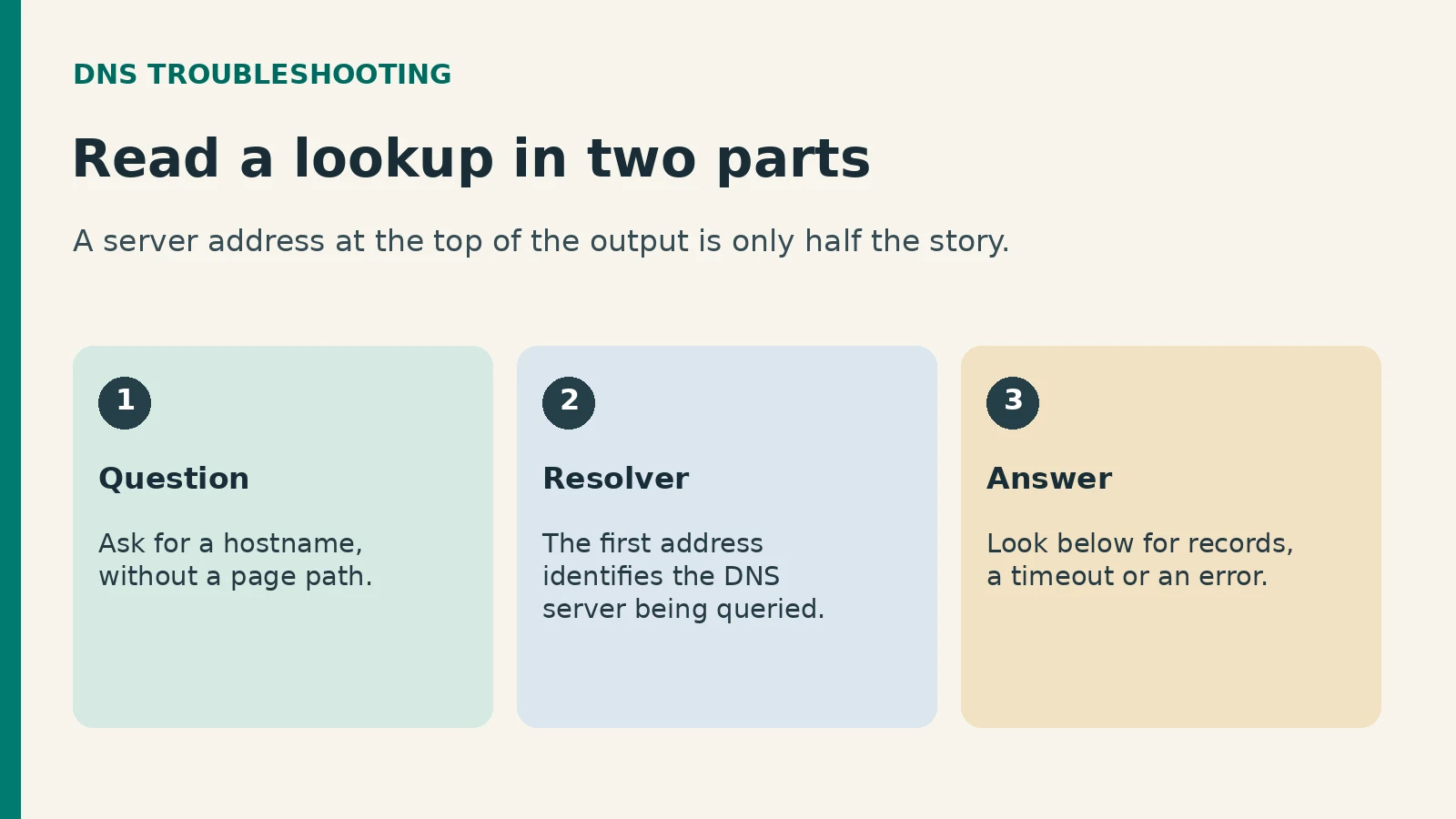
Start by opening either Command Prompt on Windows or Terminal on a Mac. Then enter this command as stated. There should be no https, forward slash or webpage title in the query:
nslookup example.comRead the response in two sections. Section 1 is the name/address of the DNS server being attempted by the computer. Section 2 lists the result of the request for example.com or an error message. If you see your router’s address listed above and “Request timed out” listed below, do NOT assume that the router’s address is a correct solution. This indicates the location that the request went to.
Enter the command again with the public hostname that you require instead of example.com. Why did we start by querying example.com? A correct reply for example.com provides you with a reference solution to compare against the incorrect solution. Furthermore, some resolvers are capable of remembering solutions provided previously; therefore, simply because two names were requested within seconds of each other does not mean they need to provide similar results. ICANN provides details regarding how a caching resolver locates, stores and retrieves answers in its caching resolver glossary.
To fairly compare two resolvers on a local connection at home, send the identical question to another resolver. The last argument in the command below is the address for Quad9’s public DNS service.
nslookup example.com 9.9.9.9The second argument changes the destination of this question only. There’s no setting to put back.
For a fair comparison, use the same public hostname in both commands. Two replies can legitimately list different addresses for a big website. Look for the difference between got an answer and didn’t get one. Keep private work names on your employer’s resolver.
Match the reply to a fix
| What the lookup says | What to do with that result |
|---|---|
| Request timed out | Repeat once. Try another name. If several time out, see whether another device on the same network can get an answer. |
| Non-existent domain (NXDOMAIN) | Check every part of the hostname against the original link. The resolver says this name doesn’t exist. Some filtering services also give that reply. |
| Server failure (SERVFAIL) | Note which resolver answered and whether other domains work. A site operator can investigate a failure confined to one domain. |
| An address for the queried name | Open the original page by name. Record the browser error if it still fails. |
With a timeout, no usable reply arrived in time. With SERVFAIL, the resolver answered and reported that it couldn’t finish.
A website owner receiving a SERVFAIL report needs the exact hostname, the time and the resolver used. “My internet is broken” gives them very little to follow. Configuration problems and DNSSEC validation failures are among the possibilities in the Internet Systems Consortium’s BIND monitoring guidance. The person visiting the site cannot correct a signing problem in the owner’s DNS records.
Repair one computer or browser
Windows laptop. Display the configuration in Command Prompt.
ipconfig /allFind the adapter you are using right now. A laptop on Wi-Fi can list Ethernet, a disconnected adapter and a VPN as well. Under the active adapter, look for DNS Servers. Does a number there belong to a router you replaced? Take a picture of the old setting. In Windows 11, open Settings, Network & internet, then the active connection’s properties. Look for DNS server assignment. Choose automatic assignment if this home network normally supplies DNS.
Run the original lookup again. If an old answer still seems to be getting in the way, open Command Prompt as administrator and clear the local resolver cache.
ipconfig /flushdnsIf the flush was successful, the laptop deleted its local cache. Now perform a new search. Run the original query, in its original form, and open the webpage. That command cannot clear your ISP’s cache.
Mac. Open System Settings, then Network. Select the service you’re using, open Details and select DNS. Look for an address you added by hand for another connection. Record it before removing it. Reconnect and repeat the default lookup. Leave employer-supplied profiles in place.
One stubborn browser. If another browser opens a freshly typed copy of the same address, check whether the failing browser uses a custom secure DNS provider. On your own machine, note the current choice and try its default setting for comparison. Restore the previous choice if nothing changes. If the problem only occurs when you tap a saved icon, navigate to the page by hand and replace the home-screen shortcut.
When every device loses DNS
Connect to mobile data and visit your broadband provider’s outage page. Compare the router’s internet light to how it looks normally. Since there is a bright Wi-Fi icon on your phone, we know there is a wireless link between the router and phone. This link may remain while the broadband connection is down.
Wait until it is safe to restart the router. Find out who else uses this router. A phone call or upload may still be functioning. Restart the router as you normally would.
Avoid the recessed factory-reset button. A factory reset can erase the settings the router needs to get back online.
On a school or workplace network, an outside DNS query may time out by design. If the supplied resolver answers and the public one times out, give IT those two results. Replacing the resolver across a managed network can break internal names. Even at home, router-wide changes can affect devices that rely on parental controls or local names.
A useful note for your broadband provider
Two laptops and a phone all join the home Wi-Fi. None can open a fresh website, but the phone loads it as soon as you switch to mobile data. Something the three devices share at home warrants a look. That still leaves several possibilities, including a fault on the broadband line.
A support note can be brief. Include these details.
- time and time zone.
- hostname you attempted to access.
- the resolver named at the top of the lookup.
- the reply, or error, below it.
- what happened on the phone with mobile data turned off.
- have status indicators on your broadband equipment changed since you first noticed this issue? Use the label beside each light.
This should allow your provider to correlate your observations with their outage/connection records. Do not add passwords, account recovery information or unrelated browsing history into your report.
When only one name keeps failing
Ask someone using another connection to type the same hostname. Give them the full address privately if the site is an internal service. An organisation may deliberately publish the name only inside its own network. In that case, a public resolver returning no answer can be the expected result. Connect using the organisation’s normal approved method and give its IT team the result from that connection.
For a public site that you maintain, distinguish the bare domain from its www hostname. If one opens and the other fails on several networks, record them separately in your support request. A browser may display them as nearly identical addresses, but they are different DNS questions. The person responsible for the domain can check the records for the failing name. Changing a visitor’s Wi-Fi settings would leave other visitors facing the same problem.
Check that the repair held
Back to the timetable. Suppose the phone works on home Wi-Fi. The laptop’s usual resolver times out, but the one-off Quad9 test answers. Under the laptop’s active adapter you find a manual DNS address belonging to last weekend’s router. You record it and restore automatic assignment. Now the default lookup returns an address.
Finish where the fault began. Open the timetable in the original browser and look up the next departure. A good lookup confirms name resolution. Seeing the departures confirms that the browser can use the result. If the lookup works but the browser now shows a certificate warning, record that new message for the next investigation.
Quick check. A colleague can open the staff homepage, but a link to the rota on the same hostname gives a 404. What would you ask them to send?
Answer. Ask for the page containing the link and the destination it opens. The server answered. The rota maintainer can check the file or route at that destination.
Join the discussion.