Leave the monitor connected if the laptop went quiet as soon as you docked it. You need the big screen and the presenter’s voice at the same time. Unplugging the display before you start makes it hard to tell which device Windows had selected.
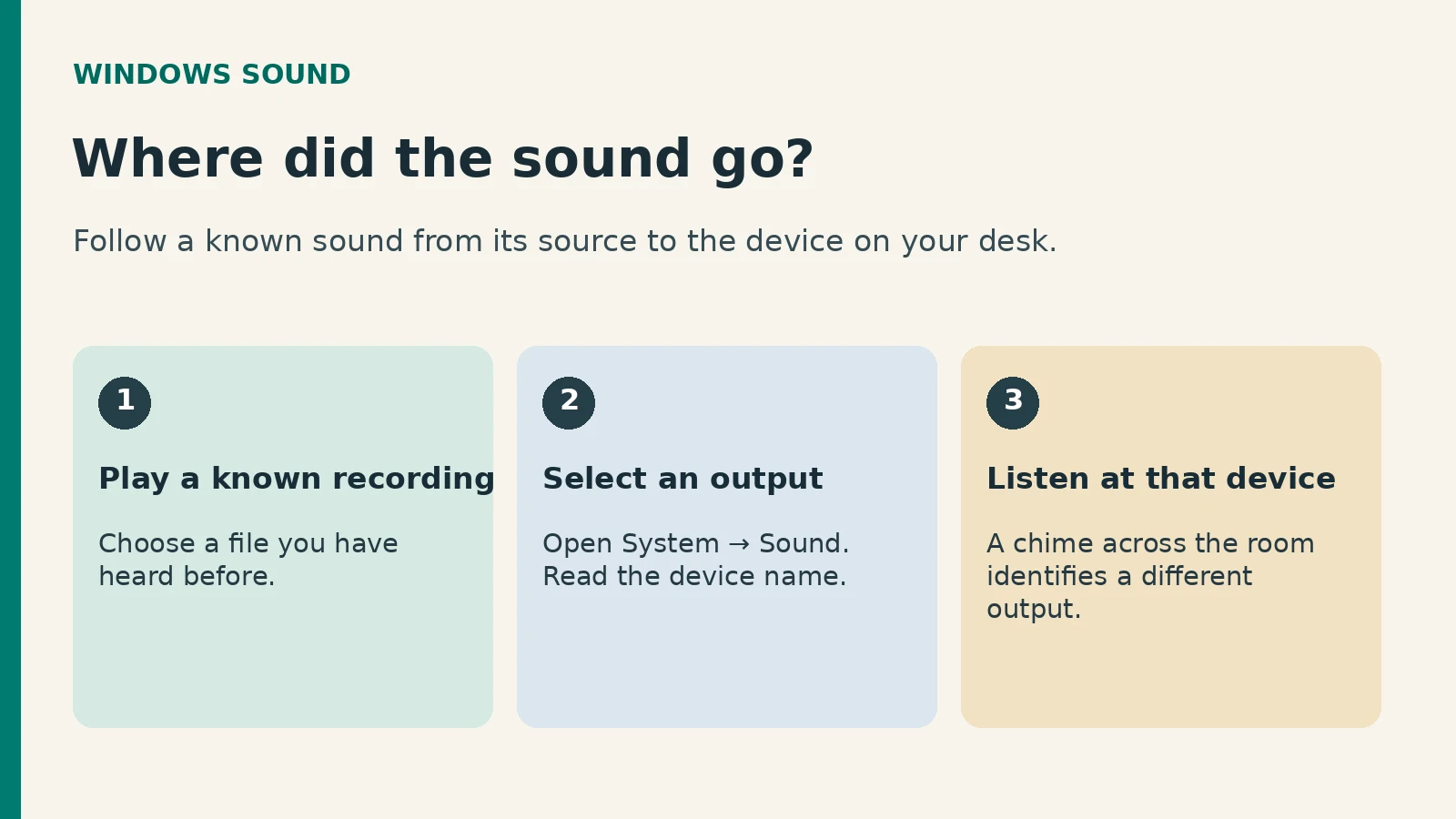
Select Start → Settings → System → Sound. Under output, find the speakers or headphones you want. Set the volume low, open the device properties and play the test tone if one is offered. A chime across the room tells you more than the moving bar on the screen. You have a working speaker, but it’s the wrong one. If it comes through the headset and your meeting is still silent, check the meeting app’s own choice of speaker.
Contents
- Start with a sound you recognise
- Follow the output to the speakers
- Fix one quiet app
- Check headphones, Bluetooth and HDMI
- Find a missing playback device
- Verify the repair
Start with a sound you recognise
Choose a recording that you could easily recognize from another room. Video recordings, especially ones randomly selected, are bad choices for testing because they are frequently either completely silent or begin with a player muted. While the Windows Test tone provides one source of a recognizable sound, the recording provides another. To rapidly return to the correct Settings window, press Win + R and type the following shortcut:
ms-settings:soundListen at the device whose name you selected. A beep from the laptop across the desk proves very little about the headset on your ears. No Test button? Play the familiar recording instead. Jot down the name of the output and where you heard the sound.
| What you hear | Where to look next |
|---|---|
| Windows plays a tone, but the meeting is silent | The meeting app’s speaker choice and its row in volume mixer |
| headphones play the recording; the laptop speakers do not | Speaker selection, mute, and anything plugged into the headphone socket |
| Laptop speakers work until you connect a screen | The selected output after the HDMI or dock connection |
| Neither the tone nor a known recording plays | The active output, its physical controls and a second playback device |
| Windows lists no output at all | device detection, the connection and the PC maker’s driver or diagnostic |
Before attempting to modify an application individually, attempt to Test the selected output.
Follow the output to the speakers
Three things might be plugged into the laptop on your desk: a dock, a display and a headset. The display sometimes shows up by model number. The built-in pair might say simply speakers. And a USB headset left under the desk can go on receiving a call for as long as it stays plugged in.
Play the Test sound by selecting an output. If you don’t hear the chime from the expected location, write down which device provided sound. The ASUS playback troubleshooting guide demonstrates how to use the output selector. Temporarily disconnecting a removable item should allow you to determine which entry corresponds to it when two entries have identical names. Reconnect it prior to your final Test.
Follow the cable with your hands. Some headsets’ problems are caused by their small volume wheels resting against desks. Powered speakers have their own power supplies and volume controls. Some laptops have two mute buttons – one for playback and one for the microphone. Begin with low volumes and repeat the same few seconds after changing volume Settings each time. A forgotten speaker knob turned up full can create a big impact.
Fix one quiet app
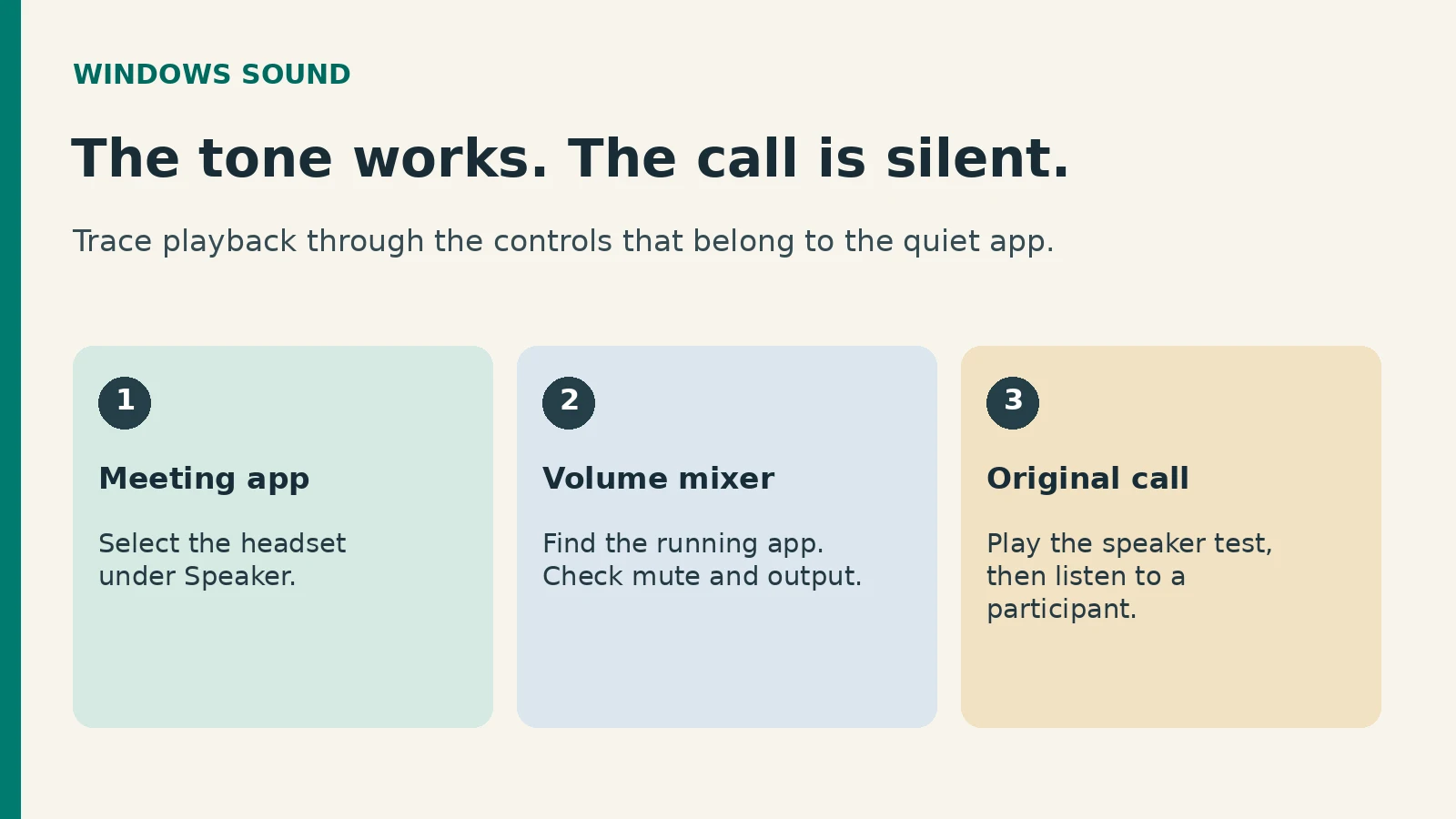
Assuming you are able to hear music through your headset but none of the people in the meeting, leave the music on long enough for you to determine which headset you used to find it. Locate and open the audio menu in your meeting app and read the name beside speaker. Click on that headset and reproduce an app Test sound. Changing mic here affects what others can hear about you.
For apps without their own speaker menu, open Settings → System → Sound → volume mixer while the app is playing. Find its row. Release mute if needed and check the level. Windows can also remember a separate output for an app. Where that selector is available, choose the intended device or choose the default if you want the app to follow Windows. Note a deliberate assignment before replacing it.
For a browser, work from the smallest control outwards: the player, the tab or site mute control, then the browser’s row in the mixer. A silent browser on one site is a different clue from a silent browser on every site. If you maintain the page, check the same media file directly and look at the HTML audio and video fallback examples. A page can display a player even when its chosen source won’t play. For a page that only stays silent on first load, try its Play button and compare the result with this guide to HTML audio autoplay.
Check headphones, Bluetooth and HDMI
wired headphones
Unplug the headphones, and plug them in again. Make sure you select the correct output (headphone output), some systems will refer to the output as “speakers” even though a plug is in the jack. Put the headphones into another working unit. If the headphones play on the second unit, ask a colleague to lend their working pair. Silent sockets are harder to debug than a simple volume slider change.
Bluetooth
Check the battery level of the headphones. Are the headphones playing your phone’s music? Stop the playback on your phone. Connect the headphones to your PC. Saved pairings are simply records of previous connections. Do the headphones appear under “sound → output”? Play the Windows beep, listen and go back to your call.
monitor or dock. Plugging in HDMI can add an audio destination even if the screen has no built-in speakers. Look up the exact monitor model. Some displays pass audio to a headphone socket and require external speakers. If you want laptop sound while using the big screen, leave the screen attached and choose the laptop speakers again. If you want monitor sound, check the monitor’s volume and its speaker or audio-out hardware. Dell’s speaker and headphone troubleshooting guide covers physical connections as well as Windows settings.
A sharp picture tells you the video signal made it to the monitor. To find the podcast, look at the audio output.
Find a missing playback device
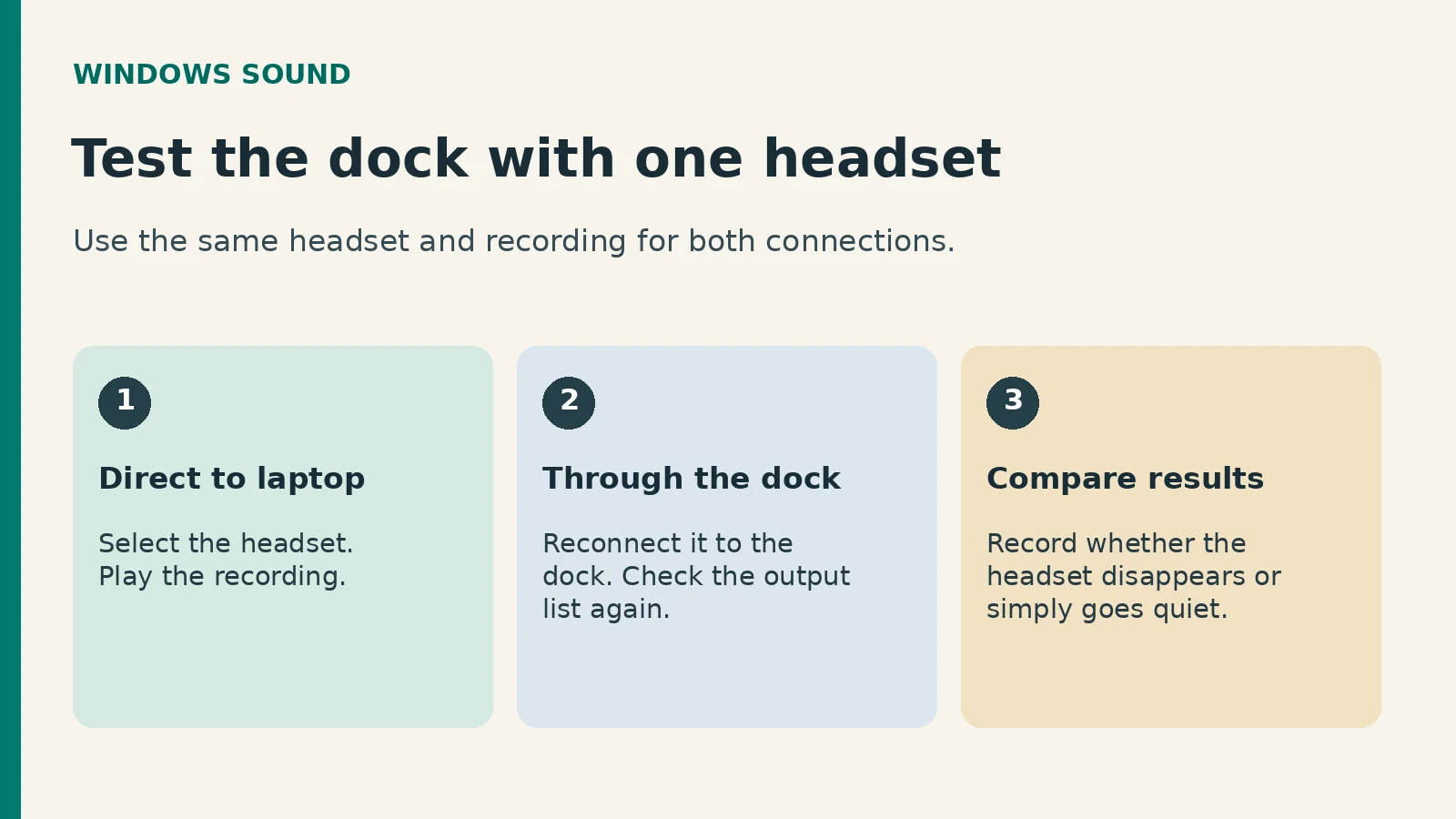
Start here when the intended output never appears. Connect a USB headset directly to the laptop to take the dock out of the test. If the headset appears there, reconnect the dock and compare. Restart Windows after saving your work if a device stopped appearing after an update or restart was already pending.
Search start for Get Help, and run the audio troubleshooter. Record the results. If you still do not see any output, open device manager and locate audio inputs and outputs and sound, video and game controllers. Warnings adjacent to entries are helpful for support personnel. Similarly, a missing device completely is. Document the exact model and error message prior to updating drivers.
Update your drivers using either Windows Update or your PC manufacturer’s support page to determine if an updated version exists for your audio device. If a recent driver update occurred right before your issue began, try rolling back your driver. In many cases, roll back driver may be unavailable. Record the previous and current versions if you do change.
On a work laptop, pass those details to IT before changing the driver.
Hardware diagnostics can help separate a Windows setting from a playback problem. On supported HP notebooks, for example, HP documents its Audio Playback Test. Use the procedure for your model and keep any failure ID. Don’t report a pass merely because the diagnostic window opened; finish the listening test and read its result.
Test the same headset in both direct connection mode to the laptop and through the dock.
When Windows plays the tone but voices are missing
Try a spoken recording through the same output. A musical chime is short and easy to recognise. Speech gives you a longer sample, and it also helps when the complaint is “I can hear the meeting start, but nobody talking”. Use the original app next. Ask a colleague to speak, or play a recording in the app if it offers one. Check whether other participants can hear the same speaker. One muted participant can produce exactly the same silence as a local setting.
If Windows and two apps sound muffled on a single output, open that output’s properties in sound settings. Note the current Audio enhancements setting if one is offered. Try Off and play the same part of the recording. Restore the original setting if you hear no improvement. Keep the headset, volume and recording fixed for both listens. Changing those at the same time makes the result hard to interpret.
A desk setup that goes quiet every morning
Imagine a laptop playing a podcast through its own speakers. Plug in a dock and the presenter falls silent halfway through a sentence. The progress bar keeps moving. On the laptop, open the output list while the dock is attached. A new entry bears the model number printed on the back of the screen. Select the built-in speakers. If the presenter returns halfway through the next sentence, the browser already had a working audio stream.
Next verify what you really expect from your desk arrangement. To produce audio through laptop speakers, select built-in speakers and attempt docking again. To produce audio from speakers attached to your monitor’s headphone jack, select display instead. Enable these speakers, research your monitor’s audio preferences and attempt to reproduce the test again. Both are distinct setups. A technical support request indicating “dock is silent” omits identifying critical information that determines which output selection to configure.
What to send to support
Share with technical support staff the name of each output identified from Windows and a brief description of which tests produced audible results. For example, “built-in speakers successfully play the test tone with dock connected. USB headset appears in sound and produces tone from laptop only when directly connected via USB. Through dock, my headset disappears from the list.” Include both the model numbers for your laptop and dock models. Providing dock models allows technical support to develop a specific connection for analysis and avoid potential follow-on inquiries concerning volume adjustments.
Copy any diagnostic code exactly. Include whether the failure occurs on waking from sleep.
Verify the repair
Return to your original desk setup. Screen attached as it was, same application open, same headphones plugged in. Play tone, then test clip. Since you experienced failures each time you docked your laptop, undock and redock it once more. It is preferable to discover any failures at this juncture versus discovering them at the beginning of tomorrow’s first call.
Quick check. Your USB headset plays the Windows tone. A local recording sounds fine through it. The call app still lists the monitor under Speaker. What should you change first?
Answer. Pick the headset in the call app and use its speaker test. You already have two pieces of evidence that the headset plays sound. Changing its driver would leave the call pointed at the monitor.
What if only the microphone is broken? Use the Input section of sound settings and the app’s microphone control. Capture and playback are separate. Being able to hear the call does not tell you whether your microphone is reaching anyone else.
Join the discussion.